The 4 modes of course delivery
There are many ways you can deliver your course, including the traditional in-person method, or newer methods, such as online, hybrid, or multi-access.
In-Person Course Delivery
In-person courses are defined by a sequence of synchronous, in-person learning activities that are often on a regular schedule.
In-person courses can include blended, flipped, or technology-enhanced approaches. Technology-enhanced approaches can leverage online resources and activities, but do not significantly alter the requirement for presence on campus. You can provide some flexibility for accommodating students, but in-person attendance is generally required to complete the course.
For example, you could use a flipped classroom approach where students meet with you in-person three times a week but watch videos and complete activities online before class to provide more in-class time for active learning and discussion.
Online Course Delivery
In online courses, students can complete all course activities entirely online and are not required to meet in person. Online course activities may include synchronous sessions that meet at a scheduled time, asynchronous learning activities or a combination of both.
For example, you could have a completely asynchronous and fully online class, with no in-person or synchronous components; or a fully online class with scheduled, synchronous sessions that meet online through Zoom.
Hybrid Course Delivery
Hybrid courses include a mixture of mandatory in-person and online activities.
In hybrid courses, the relative balance of online and in-person learning activities may vary as designed by the instructor. Generally speaking, online activities contribute to a significant fraction of the total credit value or credit hours (at least ~20%), reducing in-person time. Online activities in hybrid courses may be either synchronous, asynchronous, or combined.
Unlike multi-access courses, hybrid designated courses typically do not require live-streaming class sessions where both in-person and remote students attend simultaneously. Live streaming may be an option along with lecture recordings where the instructor wants to provide accommodation for students who need to be temporarily remote for in-person sessions.
Providing support at the start of the course regarding the course schedule, expectations, and guidance for success, along with early check-ins, is essential to help all students manage their learning effectively in hybrid courses.
For example:
- a class that meets once or twice a week in person and then has either one online synchronous class session using Zoom or asynchronous online activities that students complete independently; or
- a class that meets once a week in person has one online synchronous session and one scheduled session where students use the time to work online in small groups on collaborative projects; or
- a class that has online lectures (synchronous or asynchronous) but requires students to meet in person for lab, studio or certain major assessment activities.
Multi-Access Course Delivery
In multi-access courses, learners may participate in the course either in-person or online throughout the course, based on how the instructor designs the course.
Courses offered through a multi-access mode of delivery where students have the flexibility to participate online or in-person will need to determine whether they will hold assessment activities and final exams online, on-campus, or in both environments.
For example:
- a course where all the class sessions are streamed, and students can attend the same session in-person or online; or
- a distributed cohort program where students in a remote cohort join the class online. These cohorts may interact with each other during class through chat or video conferencing tools or online through asynchronous communications.
There are a lot of advantages to these flexible learning environments for students, however, there are some considerations, including the time commitment to learn the technology and navigate the cognitive load of managing a classroom with in-person and remote students, and the potential concerns about consistency or fairness that may come up from allowing students to choose where they would prefer to take their exams.
The Online Course Enhanced Learning Intelligent Assistant (OCELIA)
The Online Course Enhanced Learning Intelligent Assistant (OCELIA) is an AI-powered learning assistant from UBC that helps students engage with dense academic texts and arrive at tutorials prepared and confident.
Currently a prototype supported by Emerging Media Lab (EML), OCELIA aims to improve student engagement with ‘denser’ academic reading and course materials using generative AI. OCELIA addresses the concern that students often come to tutorial or discussion sessions unprepared to engage in meaningful dialogue or struggle to understand key concepts.
The intention of OCELIA is for students to engage with the tool through guided prompts that, rather than providing direct answers, engage students in dialogue to help them expand their understanding and thinking about the concepts, giving them confidence and content to bring to their tutorial and discussion sections.
Resources
OCELIA is not currently available for use outside of project pilots.
Project details
Type: Large TLEF
Status: In progress
Principal investigator: Siobhán Wittig McPhee (Geography)
We’re only Human? Educative Frameworks for Artificial Intelligence, Academic Integrity, and Writing in the Faculty of Arts
Exploring new challenges and opportunities presented by generative AI in courses where writing plays a key role in students’ understanding of foundational, discipline-specific knowledge and practice.
Generative AI is changing how students read, write, research, revise, and demonstrate learning. For instructors in the Faculty of Arts, this raises a pressing question: how do we preserve the intellectual value of writing while helping students engage critically, ethically, and transparently with AI tools?
The We’re Only Human project supports instructors in responding to these questions through educative approaches to academic integrity, writing pedagogy, and AI literacy. Rather than treating AI only as a detection or misconduct problem, the project focuses on how students can better understand when, why, and how AI tools may support or undermine their learning.
This project brings together educators and learning technology specialists to develop, test, and share teaching materials that help instructors address generative AI in writing-intensive courses. These materials support conversations about academic integrity, responsible AI use, process-based writing, and critical AI literacy.
The project is grounded in an educative approach: one that helps students understand expectations, make informed decisions, and connect AI use to the learning objectives of their courses. Its goal is not simply to tell students what they can or cannot do with AI, but to help instructors design meaningful learning experiences in a changing technological landscape.
Resources
The team designed a collection of resources to help students better understand when and how to engage with generative AI tools. Each resource includes instructor-facing materials to guide teaching and student-facing content to foster understanding and responsible use of AI.
Project details
Type: Large TLEF
Status: In progress
Principal investigators: Laurie McNeill (English) & Andrew Owen (Political Science)
Start-of-Term Checklist for Arts Instructors
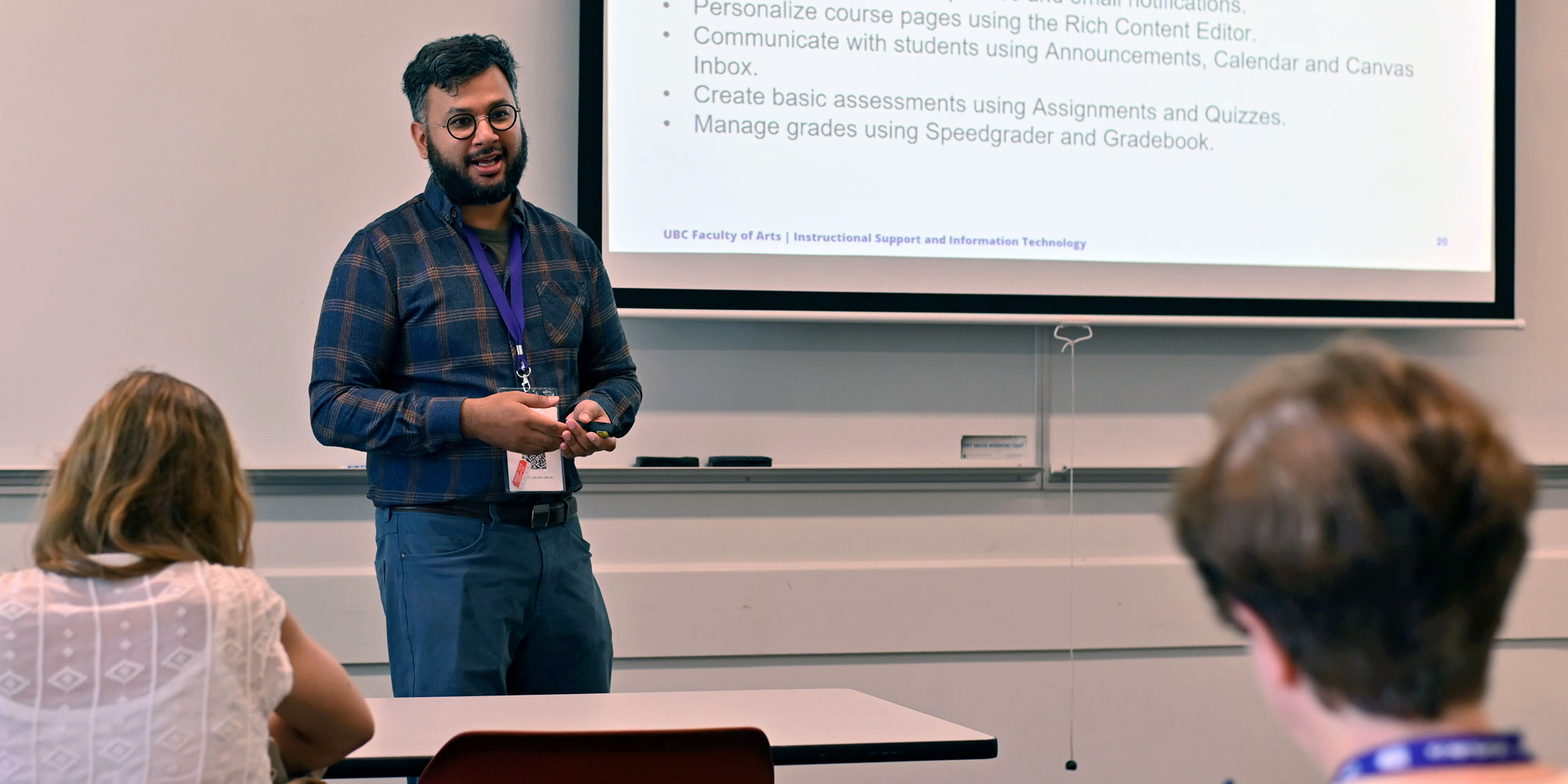
Asif Sami Haque, Educational Consultant within Arts ISIT, facilitating a Canvas workshop to Arts instructors and teaching assistants.
In preparation for the upcoming term, please have a look through this checklist to ensure that your courses are ready for May 2026.
Pre-course setup
Check to see if you have a Canvas site set up for each of your courses
When you log into Canvas, your course(s) should display as Course Card(s) on your Dashboard or in the “All Courses” list in the Courses tab.
Merge courses and copy course content as needed
Contact us for assistance with cross-listing/merging courses or to copy over content from a previous course.
Prepare your course readings
It is best to merge Canvas courses before setting up Library Online Course Reserves (LOCR). If LOCR have already been requested for the original courses, resubmit your LOCR request with the newly merged course(s). For assistance, visit the Using Course Reserves page.
Prepare for your course delivery
As UBC provides an expanded range of course delivery modes, prepare for your course delivery by reading our Course Delivery Modes & Teaching Approaches resource. If you need more help, please contact us.
Preparing to teach
Check that your TA(s) have been added
Once your department timetable representative (T-Rep) has entered your Teaching Assistant(s) (TA) into Workday, they will automatically have access to 2026SS_V courses by May 11, 2026.
Go to the “People” tab in your Course Navigation menu within Canvas. If you do not see your TA(s) listed after May 11, 2026, please contact your T-Rep.
To help your TA(s) get ready to support your classes, encourage them to self-enrol to our Arts Teaching Assistant Training course in Canvas or to contact us with their questions.
Create a UBC-registered Zoom account for hybrid, multi-access, and online courses
If you are teaching hybrid, multi-access, or online courses, we recommend having a UBC-registered Zoom account. This request may be made by contacting av.helpdesk@ubc.ca.
Set up recording and streaming in the classroom (optional)
In order to assist instructors with recording and sharing their lectures online, Arts ISIT offers support for classrooms with built-in lecture capture equipment, as well as portable AV equipment for classrooms that do not have recording and streaming equipment. Make a lecture capture request on UBC’s Recording and Streaming in the Classroom page.
Book a computer lab (optional)
Arts ISIT has Windows and Mac computer labs available to book for instructor use, which also includes one-off reservations to host digital assessments.
Canvas courses checklist
Ensure your courses are ready for the term by reviewing the following details:
- Assignments, Quizzes and Discussions have the correct availability and due dates.
- Modules and content pages have been published (made visible to students).
- By default, grades are released automatically. You may want to set the Grade Posting Policy to Manually Post Grades to ensure grading activity is hidden from students.
- Publish your Canvas course so that students can access it on their start date.
Additional resources
Simplify your teaching workflow with Canvas scripts

Save time and improve efficiency when managing your Canvas courses with our Canvas scripts.
Streamline tasks like bulk downloading student submissions, staggering quiz start times, and simplifying grading workflows. Our scripts can help free up your time from tasks that can be automated, such as assigning peer reviews by class section or grading a discussion based on weekly participation.
Scripts are particularly useful for large classes where you’re managing hundreds of students at once. By automating and batching repetitive processes, you can conduct your courses efficiently and accurately while saving valuable time.
Submit a request and Arts ISIT will set up and operate the script for you—you do not need any technical knowledge to have a script running for your course.
How do the scripts work?
Our scripts use Python, a programming language, and the Canvas API to automate tasks within the Canvas learning platform. The Canvas API is a toolset that provides access to Canvas commands and queries.
This means that we can leverage code to quickly retrieve, update, and manage course data like assignments or grades instead of executing actions manually.
Examples of scripts
We’ve developed numerous scripts that are ready to use for your Canvas courses. Below are a few examples and their possible applications.
Download all assignment submissions in a course including SpeedGrader annotations and comments. The script will generate folders for each assignment that store submissions and feedback organized by student name.
Use case: Keep a record of all student submissions along with comments and annotations for archival purposes.
Organize students into groups alphabetically to set different assignment or quiz availability times. You can specify the quantity of groups and course sections to stagger. The script will create separate “Assign To” fields in the assessment where you can add unique start, end, and due dates for each group of students.
Use case: Stagger the start times of a quiz so that student groups begin five minutes apart. This improves Canvas and Wi-Fi performance for large courses by easing the network load and minimizing technical issues when many students open a quiz simultaneously.
Canvas’s automatic assignment peer review functionality assigns reviewers indiscriminately across all sections of a course. This script allows peer reviews to be automatically assigned only to students in the same section, eliminating the need for you to manually assign reviewers by section.
Use case: Assign peer reviews to students in the same discussion/lab section to improve participation and collaboration. This also allows TA graders to only assess submissions and peer reviews of students in their discussion/lab section.
Automatically evaluate student participation in discussions by tracking how often they post within a specified time frame. The script generates a spreadsheet with columns for each participation window and corresponding student scores, ready to be copied into the Canvas Gradebook. You can set custom date ranges for each window and define how frequently students must post to earn a completion mark.
Use case: Run a semester-long online course with one continuous discussion thread. To promote meaningful, ongoing participation, students are expected to post at least once each week—building on previous replies, responding to classmates, and connecting new material to earlier topics. At the end of the semester, the script reviews student activity and identifies who met the participation requirement for each week. The script compiles students’ scores into a spreadsheet that clearly shows completion status for each participation window, making it easy to track and grade ongoing engagement.
Demo
Curious to see these scripts in action? Watch a recording of our Canvas Scripts Workshop to see a demo of the scripts above.
Timestamps
- [0:58 – 2:43] What are scripts and what can they do?
- [2:57 – 5:26] About Arts ISIT’s script service
- [5:32 – 12:40] Summary of Arts ISIT’s developed scripts and their applications
- [13:21 – 17:14] Script demo: Bulk assignment submissions downloader
- [17:28 – 24:51] Script demo: Stagger assignment and quiz start times
- [25:21 – 29:14] Script demo: Assign intra-section peer reviews
- [29:24 – 35:29] Script demo: Auto grade discussions based on repeated participation
Submit a request
Oops! We could not locate your form.