Deliver an online exam with Canvas Quiz and Respondus Lockdown Browser

Deliver an online exam with Canvas Quiz and Respondus Lockdown Browser

Online exams can run smoothly when both instructors and students are well-prepared.

This guide walks you through the key steps to set up and deliver an exam using Canvas Quizzes with Respondus LockDown Browser.


1. Use the Syllabus template

Start early by setting clear expectations. Insert language into your syllabus page reminding your students to:

  • Prepare for Canvas exams by updating their devices and testing the LockDown Browser.
  • Review the Canvas exam instructions before exam day.
  • Contact support in advance if they anticipate technical challenges.

Embedding this information in your syllabus helps ensure students are ready and reduces stress during the exam.


2. Set up the exam

Once the contents of the exam is ready in Canvas Quizzes:

  • Select the setting to Require Respondus LockDown Browser in the quiz settings.
  • Double-check availability dates, time limits, and submission rules.
  • Use Canvas’ preview feature to confirm everything looks correct from a student’s perspective.

For a step-by-step overview on setting up your exam, a guide is available to you below.

Expand all
|
Collapse all

Step by step guide

  1. From your Canvas course, click Quizzes in the Course Navigation menu. Click the + Quiz > Classic Quizzes > Submit. We recommend that Canvas exams are set up using Classic Quizzes instead of New Quizzes as they are more reliable.
  2. Fill out the Quiz Details and Questions. Select the box marked Require Respondus LockDown Browser. It is recommended that you Require an access code as well.

You can enable Lockdown Browser for use in your Canvas course by adding it to your Course Navigation menu. This step is necessary to use LockDown Browser in Canvas.

  1. Click Settings in the Course Navigation menu.
  2. Click the Navigation tab.
  3. Find the "LockDown Browser" menu item, select the options menu (the 3 vertical dots), and click Enable.
  4. Save your setting changes by clicking the button at the bottom of the page.

You will now see the Lockdown Browser option in your Course Navigation menu. This navigation item is for managing the use of LockDown Browser in the course and will not be visible to students.

  1. From your Course Navigation menu, click on LockDown Browser (A) > Scroll until you find your desired quiz > Click on the arrow (B) > Click Settings (C).

  2. Enable Require Respondus LockDown Browser for this exam (A) > Click on Advanced Settings (B).

  3. Enable Lock students into the browser until exam is completed (A).
  4. In the section Password to close browser and exit exam early (optional), enter a Proctor Exit Password (B). While this is marked as optional, it is highly recommended (especially if you have students taking the exam on an iPad). A Proctor Exit password is set up to help students exit the LockDown Browser application during the assessment if they face any technical issues. Proctor Exit password should be administrated by exam invigilators. Students should not know the password.
  5. Click Save + Close (C)


3. Send the Exam Practice Run to students

The experience of an online exam can be optimized by giving your students a chance to try out LockDown Browser and confirm ahead of the exam that there are no issues using it on their device.

Encourage your students to enroll in the Arts ISIT Exam Practice Run. This practice environment allows students to install and run LockDown Browser on their computer. To access this course, students can self-enrol on Canvas using the above link. We would also recommend referring to the user guides on our LockDown Browser tool page.

We recommend sending the Exam Practice Run to your students at least a week before the exam takes place.

Additionally, setting up a practice quiz that has similar settings to your exam will ensure students can troubleshoot potential issues beforehand, reducing the possibility of any unforeseen technical issues on the day of the exam.


4. Request an Exam Settings Review

Arts ISIT offers an Exam Settings Review where we go over your exam settings and ensure everything is properly set up.

This technical review of your online exam catches avoidable issues that may affect your online exam delivery. If there are any issues with your exam, our team works with you to make the required adjustments to ensure a smooth delivery.


5. Staggering start times (130+ students)

For courses that have 130+ students, it is recommended to stagger the start times of the exam by at least five minutes apart per group of students. This will help with performance and reduce load issues of the exam in Canvas. Please contact us for assistance on how to bulk assign your students for your upcoming exam.


6. Prepare to deliver your exam

In preparation for exam day, instructors can prepare for exam delivery through the following actions:

  • Review our troubleshooting guide: We share helpful advice on how to troubleshoot the most likely technical difficulties and how to get help if you cannot resolve the issues on your own. We recommend that you bookmark or keep this page handy before beginning the exam in case any issues arise.
  • Review best practices: Revisit our tips for online exam delivery.
  • Bring paper copies of the exam: It’s important to have a back-up plan in case something goes wrong with the online exam. We recommend keeping a few paper copies of the exam. Arts ISIT can generate a PDF version of your Canvas Quiz.
  • Know who to contact: If you come across any technical difficulty during your exam, support is available.
    • During business hours, reach out to Arts ISIT.
    • During final exams outside of business hours, you’ll need to contact UBC’s Learning Technology Hub (LT Hub) through their web form.

Best practices for delivering an online exam

Delivering an online exam involves more than simply moving a paper test into a digital format.

Thoughtful preparation, clear communication, and attention to accessibility, integrity, and technical reliability are key to a smooth experience for both instructors and students.

This guide outlines best practices to help you plan, deliver, and reflect on your online exams with confidence—ensuring that your online assessments are well prepared, secure, and aligned with your course goals.


Consider if an online exam is the right fit

Consider if your current exam setup is still the best fit for your goals and course objectives. Feel free to reach out for a consultation if you would like to discuss available options with an Educational Consultant.


Prepare your students early

Inform your students early on of the online setup of the course’s assessment(s).

  • Use the Syllabus template
  • Send your students the Exam Practice Run before each online exam
  • Remind students to make sure Lockdown Browser (LDB) is up to date before the assessment

Consider accessibility and inclusivity

  • Ensure exam settings accommodate extra time or other accommodations
  • Avoid question formats that can be difficult for screen readers

Support academic integrity

  • Randomize questions if possible
  • Draw from large question banks to vary exams between students
  • Balance high-stakes exams with low-stakes assessments

Minimize technical risks

  • Request an exam settings review: Avoid preventable technical issues by requesting an Exam Settings Review by the Arts ISIT Learning Centre. This carefully designed service ensures that your online exam is thoroughly tested so you have the peace of mind that it is set up properly.
  • Stagger exam start time: For courses that have 130+ students, it is recommended to stagger the start times of the exam by at least five minutes apart per group of students. This will help with performance and reduce load issues of the exam in Canvas. Please contact Arts ISIT for assistance on how to bulk assign your students for your upcoming exam.
  • Know who to contact: If you come across any technical difficulty during your exam, support is available.
    • During business hours, reach out to Arts ISIT.
    • During final exams outside of business hours, contact UBC’s Learning Technology Hub (LT Hub).
    • For issues with classroom equipment, call the AV number that is listed near the lectern.

Have a back-up plan

Have paper copies of the exam ready for individual students who lose connectivity mid-exam or have other device issues preventing them from starting or continuing their exam.

Arts ISIT has curated a list of FAQs covering common issues that can pop-up while administering an Online Exam.


Take time for post-exam reflection

  • Check quiz statistics for unusually hard questions (very low success rate).
  • Use student feedback to refine future online exams.
  • Consider whether your exam design supported learning goals as well as secure delivery.

Follow our step-by-step guide

If you have decided to go for a Canvas exam, we recommend following our step-by-step guide for delivering an online exam with Canvas Quiz and Respondus Lockdown Browser. This article prepares you for a successful exam delivery.


Educative frameworks for AI and academic integrity in Arts’ writing-based courses


Beyond technical skills: a pedagogical perspective on fostering critical engagement with generative AI in university classrooms

Paper or Canvas exam?

When it comes to high-stakes assessments being written in person, many instructors are weighing whether to stick with traditional paper exams or move assessments online using tools like Canvas and Respondus LockDown Browser.

Each approach brings its own technical considerations, challenges, and benefits—here’s a closer look.

📝 Paper exams: A traditional method of assessing student work, students complete a paper exam in a classroom or exam hall and directly submit it to the teaching team.

💻 Canvas exams: You can also use Canvas, UBC’s Learning Management System (LMS), to administer an exam. Students use their own device to complete a digital exam in a secure environment. This method requires the student to install Lockdown Browser on their device.


Benefits and challenges of paper vs. Canvas exams

Assessment tools and features

Paper exam

Flexible for complex work: Subjects that require diagrams, equations, or free form drawing often work better on paper.

⚠️ Scalability issues: Question randomization and auto-grading aren’t possible on paper. There is a reliance of multiple versions of the same exam to ensure academic integrity for large classes.

Canvas exam

Built-in tools for scalability: Canvas offers automated grading for multiple-choice, true/false, and other question types. Instructors can also setup question banks, allowing randomization of exam questions.

Managing accommodations: Extended times or varied start/end times can be easily setup on Canvas.


Academic integrity

Paper exam

Simple invigilation: The teaching team and students are familiar with how these assessments are administered.

Authenticated student work: Rest easy knowing ghost writers or AI tools will not affect the academic integrity of your exam.

Canvas exam

Locked down test environment: LockDown Browser restricts students’ ability to navigate away from the test, open new tabs, or use any sort of AI assistant on the device being used.


Technical dependence

Paper exam

No tech required: Paper exams don’t rely on internet connections, software, or devices. If the lights stay on and the room is quiet, the exam runs as planned!

Canvas exam

⚠️ Technical dependence: Students need a reliable device and internet connection. A dropped Wi-Fi signal can cause major stress over lost time — or worse, lost answers.

⚠️ Software compatibility: LockDown Browser can cause issues for students using older devices, tablets, or certain operating systems.

⚠️ Learning curve: More technical support is needed before the exam to ensure students are set up and familiar with the use of LockDown Browser.


Logistics and operations

Paper exam

⚠️ Manual workload: Printing, collecting, transporting, and grading physical papers takes coordination, time, and space.

⚠️ Archival issues: Lost or misplaced papers can be a serious problem. Exams have to be securely stored for at least a year in case of grade disputes.

⚠️ Difficulty reading responses: Some exams may get messy as students rush through their responses or rewrite sections.

Canvas exam

Centralized access: Once the exam is completed, the entire teaching team has access to all submissions.

Online archival: Student submissions are stored indefinitely on Canvas.


Other tools for marking paper exams

Scantron

Scantron is a multiple-choice test tool that is available to faculty and staff in the Faculty of Arts. It uses proprietary forms which are filled in by students during their exam and then fed through a specialized Scantron scanning machine to automatically score, analyze, and print data.

Scantron forms are supplied through individual departments and come in various formats.

FormScanner

Open-sourced and free to use, FormScanner is a fast and updated alternative to Scantron grading products. Rather than using pre-made forms that require prior ordering and delivery time, users can create custom forms with the built-in test tools and print out their own forms.

Gradescope

Gradescope has the ability to create and edit shared rubrics, deploy artificial intelligence-assisted grading features, automate digital assessment and assignment return to students, and view grading analytics.

There is a cost for using Gradescope at UBC. The cost is charged per student per course. Funding for Gradescope will need to be discussed with your department.


Guide For Getting Started With Teaching

Arts ISIT offers pedagogical and technical consultation and support for all Arts faculty members to assist you in exploring and integrating technologies and new ways of designing learning experiences into your teaching practice.


Course Delivery Modes

UBC has adopted an expanded range of course delivery modes that provide more options for flexible course design and delivery. These delivery modes are available to be included as activity types in the Student Information Services Centre and provide a range of options for how instructors might configure their classes across in-person and online spaces.


Canvas

Canvas is UBC’s primary learning management system and the centre of its educational technology ecosystem. In Canvas, instructors can easily share course content, communicate with students through announcements, facilitate student discussions, create and grade assessments, and calculate grades.


Classroom Audio Visual & Computer Labs

Arts ISIT provides support for the audio visual and computer equipment in your classroom and offers computer lab facilities to meet your teaching needs.


Instructional Support

The use of various learning activities, assessments, and strategies can promote student engagement in class and learning outcomes both inside and outside the classroom. They can be used in classes to promote active learning by giving students the opportunity to check their knowledge and get real time feedback.


Funding Opportunities

UBC helps connect faculty members with funding opportunities across all disciplines to enrich student learning by supporting innovative and effective educational enhancements.


Now you’re all set to go! If at any time you need technical assistance, please contact the Arts ISIT Help Desk and we will be happy to assist you.

Monitor Your Online Exams with LockDown Browser and Zoom

Using LockDown Browser and Zoom on two separate devices is a good way to invigilate remote online exams.

Instructor Set-up GuideLive Exam Support FAQ


How does it work?

Zoom, a video conferencing application, can be used to monitor students while they take their online Canvas exams via LockDown Browser, a specialized web browser that prevents students from copying external content, accessing applications and visiting other websites for the duration of the exam.

Note: You may use Zoom to monitor students and discourage them from cheating, but please note that the tool does not prevent cheating. 

Creating an exam with LockDown Browser and Zoom using TWO devices

  • Requires instructor to have a UBC licensed Zoom account to host the session.
  • Students use two devices, one for writing the Canvas exam with Lockdown browser and a secondary device for Zoom that shows the student workspace (i.e., students write the Canvas Quiz on a computer and have Zoom open on their phone).

Things to Consider

Exam practice run: To ensure students get familiar with LockDown Browser and resolve issues in advance, have your students enroll in the Arts ISIT Exam Practice Run course on Canvas. The course includes practice quizzes for students to identify and resolve potential issues. This site also includes  a comprehensive student guide, troubleshooting tips and support information. Instructors are also encouraged to self-enroll to review the contents.

Breakout rooms: Breakout rooms will need to be created for courses with 25+ students, as Gallery View only displays up to 25 video feeds (or 49 depending on screen resolution) per page. Note that there is a maximum of 100 breakout rooms that can be created per session.

Note: For large classes of 300+ students, contact av.helpdesk@ubc.ca and request to activate “Large Meeting Add-On” for your Zoom account. 

Chat functions differently in breakout rooms. If private chat is disabled, students can still send a chat message that is visible to everyone in the breakout room – including the invigilator.

Invigilator setup: Each breakout room should have one invigilator. The invigilators can be TAs or instructors and they should be given host/co-host access.

Invigilator communication: Hosts and co-hosts are recommended to use an external communication application such as Microsoft Teams, Zoom chat through the desktop client app, etc to interact amongst themselves.

Staggering start times: For courses that have a large number of students, it is recommended to stagger the start times of the exam by at least five minutes apart per group of students. This will help with performance and reduce load issues of the exam in Canvas. Please contact us for assistance on how to bulk assign your students for your upcoming exam.

Checklist for running the exam in Zoom

  1. Adjust the Canvas Quiz availability and duration to accommodate the time students need, to join the Zoom session and complete their set-up.
    Tip: Give yourself sufficient time to set up the session, allow participants in, and address any technical questions your students may have.
  2. Assign the invigilators as co-hosts (or alternative hosts if they have a registered UBC Zoom account).  This will serve as a backup plan in case the host has issues with internet connectivity and will allow them to help with breakout rooms.
    1. Click on Manage Participants in the meeting controls at the bottom of the Zoom window
    2. Hover over the name of the participant who is going to be a co-host, and choose More
    3. Click Make Co-Host
  3. Disable chatting class-wide.
    1. Click the Chat icon at the bottom of the Zoom desktop application
    2. Click the three dots > Host only
  4. Allow participants from the waiting room to join the session.
  5. Lock the meeting once all participants have joined through the Security icon.
  6. Create and assign participants to breakout rooms (if preferred).
  7. Select “Gallery View” by clicking the View button on top right corner of your Zoom window.

FAQs

Expand all
|
Collapse all

It is recommended that you provide a good pedagogical rationale for why you have chosen a particular tool in the course and communicate this to your students. This allows students to make a choice if they wish to continue the course. Learn more here: Principles for Remote Invigilation.

Example Paragraph for Syllabus: This course will use a combination of Zoom and LockDown Browser to monitor your Midterm and Final exams. This tool was chosen in order to address accreditation requirements and maintain academic integrity for tracking academic progress of individual students. For more information, please refer to the UBC Lockdown Browser Student Guide. If you require accommodations for accessibility needs or technical/connectivity issues, please contact the Centre for Accessibility or your Enrolment Services Advisor.

If you wish to record the session, you must store Zoom session recordings on a cloud. Zoom will only record the main session and not the breakout rooms.

The following Zoom settings are recommended when recording to the cloud so that the gallery view is more prominent:

  1. Go to zoom.us to log in to your UBC Zoom account and click Settings from the left menu
  2. Choose Recordings from the top menu
  3. Under Cloud Recordings, check mark Record active speaker, gallery view and shared screen separately

Recording Gallery view in the Zoom settings

Note: If you wish to record the exam and you have more than 25 students (or 49 depending on screen resolution), consider creating multiple Zoom sessions. You will need co-teachers or TAs to schedule the other Zoom meetings and invite you as co-host (UBC licensed Zoom accounts required).

In order for users to be added to another person's meetings as an alternative host or to create Zoom meetings for office hours, lectures, exams, and other uses, they will need a UBC licensed Zoom account.

To set up a UBC licensed Zoom account, please send an email to av.helpdesk@ubc.ca with the following information:

  • UBC email address
  • Faculty / School / Department

You may provide time extensions for students in Canvas by following these steps:

  1. Go to your course on Canvas.
  2. Go to Assignments.
  3. Click on the quiz.
  4. Click Moderate this Quiz from the right sidebar.
  5. Find the student that you would like to increase the exam time for. When they are attempting a quiz, a blue clock icon will appear next to the timer.
    Click the blue clock icon.
  6. Enter the extra time that you would like to grant the student in minutes.
  7. Select if you would like to extend their time immediately after clicking Save, or if you would like to extend their current end time.
  8. Click Extend Time.
  9. Navigate back to the quiz page.
  10. Click the Edit button on the top right.
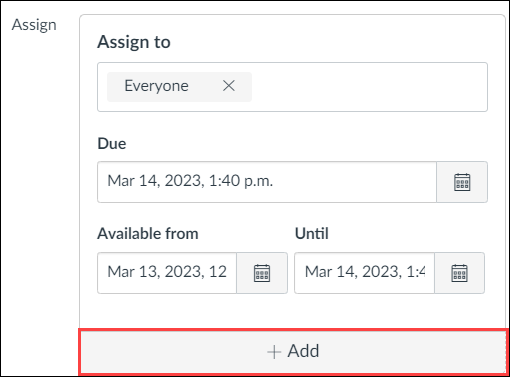
  11. Scroll down and find the Assign box.
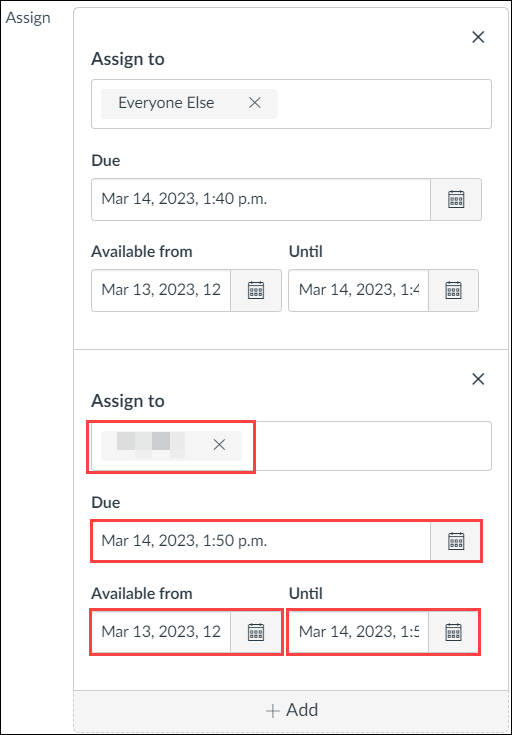
  12. Click +Add on the bottom of the box.
  13. Type in the student's name in the Assign to bar and click on their name.
  14. Adjust the Due and Until date for them to reflect the extra time given.
  15. Note: If there already exists a separate Assign box for the student, there is no need to create a new one; you will just have to adjust the Due and Until date for them.
  16. Click Save.

You may increase the attempts allowed for a student(s) in Canvas by following these steps:

  1. Go to your course on Canvas.
  2. Go to Assignments.
  3. Click on the quiz.
  4. Click Moderate this Quiz from the right sidebar.
  5. Find the student that you would like to grant the extra attempt to. Click the pencil icon on the right-side hand of the screen.
  6. Enter the number of extra attempts that you would like to grant the student.
  7. Select if you would like to manually unlock the quiz for the next attempt.
  8. Click Save.

If your screen resolution supports it, Zoom gallery view can display 49 students instead of the standard 25. To enable the setting:

  1. Click on the arrow beside the video icon on your Zoom menu panel
  2. Choose Video Settings...
    Selecting Video Settings on Zoom
  3. Scroll down the video settings and choose 49 participants under Maximum participants displayed per screen in Gallery View
    Choosing 49 participants on Zoom

Two zoom sessions at the same time can be created per account. The first meeting can be started on the Zoom Desktop App, but the second session must start from a browser. In the browser:

  • Go to join.zoom.us
  • Enter the meeting ID
  • Click Join
  • Note: Your computer may prevent you from using a single webcam in multiple meetings.


Online Resources

Creating AI-resilient assessments: A guide for Arts instructors

Find practical strategies for creating assessments that are more resilient to AI misuse, tailored for instructors in the Faculty of Arts.

The rise of generative AI presents both challenges and opportunities for academic assessment. While these tools can be misused, they also push us to design more meaningful and authentic assessments that focus on higher-order thinking, creativity, and real-world applications. This guide offers some practical strategies to help UBC instructors across the Faculty of Arts create assessments that are more resilient to AI misuse.

The goal is not creating “AI-proof” take-home assignments, which is an impossible task since any assessment that students complete outside of a supervised setting is vulnerable to unpermitted AI use. Rather, we need to develop assessments that are less susceptible to simple AI generation while encouraging students to engage deeply with course materials.


Proactive measures: Setting the stage

Before designing individual assignments, it’s crucial to establish a classroom environment that proactively addresses the role of AI. Students are already fearful of having these conversations with their professors—worried that they may be seen as having the intention to cheat. By setting clear expectations and educating students about the ethical and effective use of these tools, you can prevent misunderstandings and foster a culture of academic integrity from the outset.

Expand all
|
Collapse all

Secure student buy-in by creating a clear, concise course policy on AI usage. Explain the rationale behind your policies, whether you are banning it, allowing for specific tasks, or actively integrating it.

When students understand the “why” (e.g., to develop critical thinking skills or to ensure fairness), they are more likely to adhere to your guidelines. Make this policy prominent in your syllabus, discuss it on the first day of class, and return to it when discussing assignments throughout the term. Remember, the AI landscape is constantly changing—make sure to revisit your policies on a per course and per term basis.

Need assistance? Consider using our AI Syllabus Policy Generator as a starting point.

If you decide not to simply ban AI, you will need to teach students when and how to use AI ethically as a tool for brainstorming, outlining, checking grammar, etc. You may want to create an assignment where students are asked to critique an AI-generated response, fact-check its output, or use it as a starting point for a more complex analysis. This not only improves their work but also teaches them about the limitations of these tools so that they can make more informed decisions.

Regardless, be explicit about the learning goals of such an assignment, why you are assigning it, and what you hope your students will gain from it.

You may want to consider incorporating UBC’s Guidance on Responsible AI Use into such discussions.


Strategies for take-home assessments

These overarching strategies can be applied to any assessment type to increase its resilience to AI and enhance its educational value but are particularly helpful for take-home assignments where instructor oversight is not possible.

The University of Sydney offers an excellent online repository of open educational resources, including ready-to-deploy assessments that align with many of the strategies discussed here. We encourage you to explore the AI for Educators Canvas Repository and adapt any resources that suit your teaching needs.

Expand all
|
Collapse all

Emphasize the steps involved in creating the final work. This makes it more difficult for a student to outsource an entire task to AI.

You may require students to submit outlines, annotated bibliographies, drafts, or reflections on their creative process. For example, an instructor may ask for access to a student’s Google Doc so that they can access its version history.

Connect assignments to students’ personal experiences, specific in-class discussions, or unique data sets.

For example, ask students to apply a theoretical concept to their own life, a recent local event, or a case study discussed in class. More authentic, personal dimensions may promote student engagement, resulting in them being more likely to self-author the assignment.

Base assignments on materials that are not easily accessible to large language models. Require students to incorporate specific passages from a textbook, a guest lecture, or an in-class film screening.

Design questions that require analysis, synthesis, evaluation and creation, rather than simple recall or summarization. AI is proficient at summarizing, but it struggles with deep, nuanced analysis or generating truly novel ideas that are based on complex constraints.

For example, instead of asking “Summarize the causes of World War I,” try “Evaluate the most significant cause of World War I, using at least three specific historical events to defend your position. Why is the cause you chose more significant than others we have discussed in class?”

Ask students to work across different formats. This requires a level of synthesis and understanding that is more difficult to achieve with separate AI queries.

For example, you may have students create a presentation based on a written paper, write a script for a podcast episode summarizing complex tasks or topics, or create a visual diagram that explains concepts and then write a detailed explanation of that diagram.

Require students to analyze and evaluate their own work by briefly defending or explaining it. This can take the form of one-on-one discussions (ideal for smaller classes), a short reflection video submitted alongside the assignment, or in-class presentations where students apply their knowledge by responding to peer questions.

These activities help assess student understanding beyond recall or basic comprehension, targeting analysis, evaluation, and even creation—cognitive levels that are less easily outsourced to generative AI. In addition, it better reflects how knowledge is disseminated throughout the academy while promoting students’ ownership of their work.

Break down large projects, like term papers, into smaller, scaffolded parts. For example, an essay may be broken down into proposal, annotated bibliography, outline, draft, peer review, and final draft stages.

This will allow you to see how the student’s project evolved over time and makes it extremely difficult for a student to generate the entire project at the last minute with AI. You may also choose some components to be done at home while others are completed in class.

In multiple-choice questions, use plausible but incorrect "distractor" options that would appeal to an AI's reliance on generalized models.

For instance, a question could ask students to identify the primary function of a contemporary urban area like Vancouver's Granville Island, located on a former industrial waterfront. Plausible distractors could be "heavy manufacturing" or "low-income housing," which are consistent with classic urban models an AI would know. However, the correct answer, "public market and tourism hub," requires specific, place-based knowledge that contradicts those models, effectively confusing the AI.

Including diagrams, charts, graphs, or multimedia elements into exam questions can make it more difficult for LLMs to provide accurate answers. While many models have become better at reading complex images, requiring a student to extrapolate information based on a visual model or diagram can still be an effective way to boost the AI resiliency of your assessment.


Leveraging in-class or proctored solutions

Sometimes, you need greater control over the reliability of your assessments, such as when conducting mid-term or final exams. While approaches like honor codes, conduct statements, and randomized question banks represent traditional methods to prevent academic misconduct, these are rarely effective at preventing the unauthorized use of AI.

Below are a few solutions you may wish to employ to promote AI resiliency in such cases, although you may want to compare your options before choosing which to implement.

Respondus LockDown Browser

LockDown Browser is a secure web browser that limits what students can do during assessments in Canvas. While using LockDown Browser, students cannot print or copy questions, visit other websites, open other applications, or exit the assessment until it has been submitted. This helps prevent the use of generative AI tools and other unauthorized resources during the test.

For additional assistance incorporating this technology, please consult Arts ISIT’s guide on Respondus Lockdown Browser.

Remote proctoring with Zoom

To improve security while students are writing an exam remotely, consider combining a technology like LockDown Browser with live proctoring over Zoom. You will need to require your students to have their cameras on during the exam and depending on the size of your class, you may require support.

Please consult Arts ISIT’s guide on how to monitor your online exams with LockDown Browser and Zoom for more in-depth guidance.

Computer labs

Administering assessments in a controlled lab environment can provide a high level of security. By restricting network access to only the necessary resources and combining this with live proctoring, it is far less likely that students will be able to utilize AI. In addition, the very fact that students are not using their own devices in such situations further reduces the likelihood that they will cheat or use AI.

Interested in the type of spaces available to you? You can view our available computer labs and request one for your course.


Considering inclusive assessment practices

While exploring options for making your assessment more AI-resistant, it is also important to keep in mind the impacts these changes might have in terms of inclusion and accessibility. As many researchers have pointed out, decisions around assessment design are inherently value-laden, as they can either foster or hinder inclusivity and impact individuals in diverse ways (Joanna Hong-Meng Tai et al, 2022).

For example, while shifting assessment towards timed, in-person activities may have benefits in-terms of limiting the use of AI, these changes may disadvantage students with certain disabilities or mental health considerations, resulting in increased requests for accommodation. It is important to take these impacts into consideration and balance the potential benefits and impacts of the changes you are making.

Here are some simple things you can do to help make your assessment more inclusive along with some resources to consider.

Expand all
|
Collapse all

If you are introducing in-class assessment activities, try to give students ample time to complete the activity so that the time doesn’t become a barrier and source of anxiety for students.

Consider spreading in-person assessment activities across the term instead of one or two intense periods.

Make sure at-home or online activities are well aligned with in-person assessment components so that the learning students do outside of class adequately prepares them and gives them practice for what they will demonstrate in class.

Provide practice opportunities that mimic what they will do during the in-class assessment to allow students to prepare for, and become familiar with, what the experience will involve.


Additional resources

Playing the language game with AI


Unlock the benefits of your major for your students with signature pedagogies

Beyond content, and toward understanding how we teach our disciplines.

Signature pedagogies refers to the forms or styles of teaching and instruction that are common in disciplines, areas of study, or professions in a field of study. Signature pedagogies often manifest as habits of mind, hand, and heart that underpin the teaching of content in a particular course and major.

References

  • Exploring Signature Pedagogies. Eds Gurung, Regan A.R., Chick, Nancy L., and Haynie, Aeron. Stylus Publishing, 2009.
  • Exploring More Signature Pedagogies. Eds Chick, Nancy L., Hay7nie, Aeron, and Gurung, Regan A. R. Stylus Publishing 2012.

Benefits of understanding signature pedagogies

By understanding and then being explicit and intentional about the signatures of your discipline, you can ultimately impact student learning by conveying beliefs about the attitudes, values and dispositions in your discipline and choosing to enhance concrete operational acts of your teaching.

These in turn can provide opportunities for students to:

  • clearly identify and articulate skills obtained from their education (Skill Identification)
  • reflect on their learning in deeper ways that can profoundly impact their sense of themselves, their majors, and their abilities (Self-awareness)
  • communicate learning from their disciplines to audiences outside of the university, including family, potential employers, and graduate or professional schools (Lifelong Skills)
  • feel empowered in developing the habits of habits of mind, hand, and heart (Shulman, 2015) that pertain to their chosen field of study and career (Empowerment).

Key to students’ sense of empowerment is their ability to understand and articulate learning from their disciplines to audiences outside of the university, including family, potential employers, and graduate or professional schools. Being explicit about the signatures of your discipline will support your students’ learning and their futures.

Unlocking the benefits of your major for your students with signature pedagogies

Making the habits of hand, heart, and mind that underpin your teaching visible to students helps them better understand the expertise they are developing in your courses beyond course content. This, in turn, helps empower students to understand how they can take their disciplinary knowledge into their lives and careers after graduation.

In this short video, UBC Arts Career Strategist, Shagufta Pasta, shares data from the Gallup-Purdue Index, which demonstrates the career benefits to students of high impact classroom learning experiences.


Contact us

The Arts Practical Learning team is available for:

  • Providing 20-30-minute consultations with individual faculty members about specific course outcomes in relation to Signature Pedagogies.
  • Hosting a 3-hour workshop to your department to explore Signature Pedagogies in your discipline. The workshop includes time to add outcomes related to habits of hand, heart, and mind to existing course syllabus.